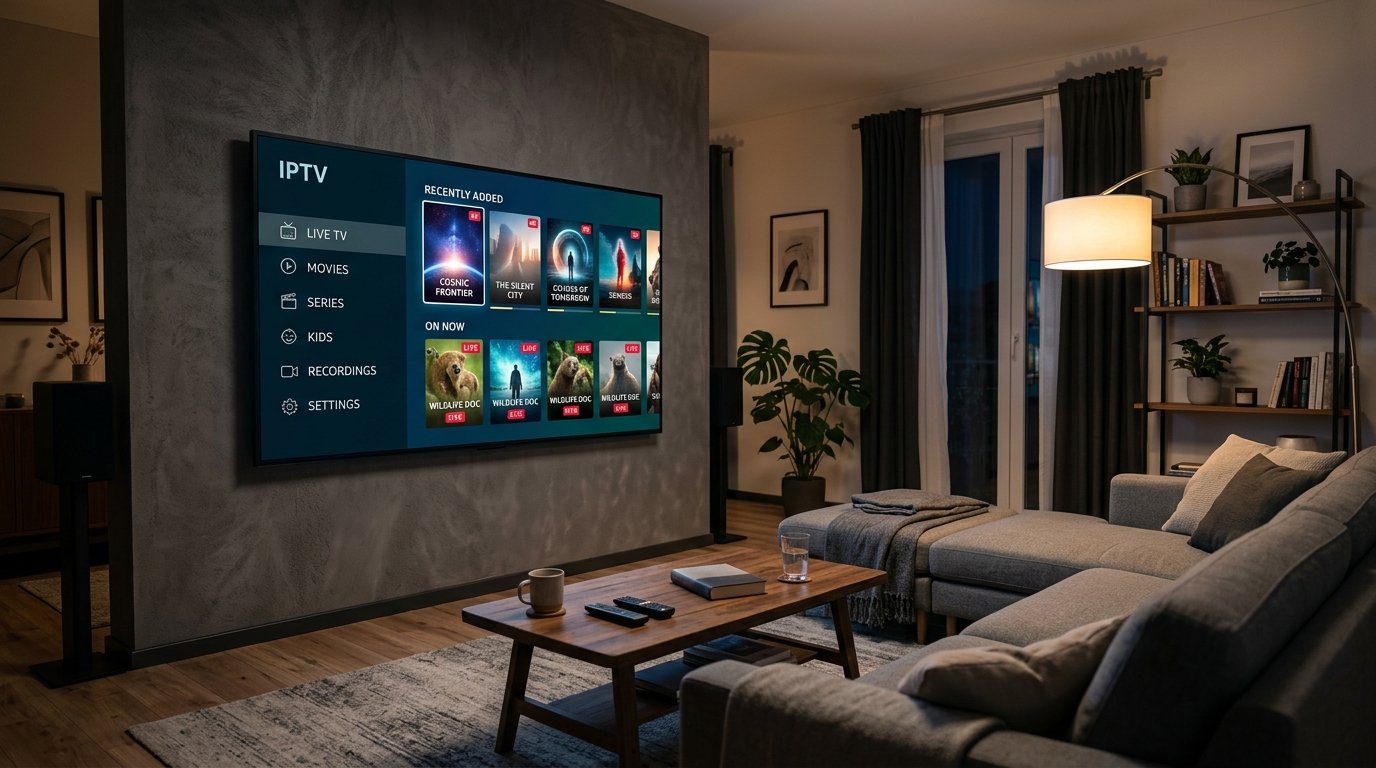
If you are looking for a simple way to organize your IPTV subscription, IPTV Smarters Pro is one of the applications you may come across. The app provides an easy interface for accessing live TV, movies, series, and other IPTV content supplied through your own subscription.
This IPTV Smarters Pro setup guide explains how to install the application, add your IPTV details, organize your content, and troubleshoot some of the most common problems.
What Is IPTV Smarters Pro?
IPTV Smarters Pro is an IPTV player designed to organize and play content from an IPTV service. It does not normally provide channels or subscriptions by itself.
After installing the application, you need to add the login information or playlist supplied by your IPTV provider.
Depending on the version and device, you may be able to access sections such as:
- Live TV
- Movies
- TV Series
- VOD
- Catch-Up
- Favorites
- Electronic Program Guide (EPG)
The exact features can vary between versions and supported devices.
What You Need Before Setup
Before starting, prepare the following:
- A compatible device
- A stable internet connection
- IPTV Smarters Pro or a compatible version
- An active IPTV subscription
- Your IPTV login details
Your IPTV provider may give you Xtream Codes, an M3U playlist URL, or another supported login method. Keep these details ready before opening the application.
IPTV Smarters Pro Setup: Step 1 — Install the App
The installation process depends on the device you are using.
IPTV Smarters Pro may be available on supported platforms through their respective app stores or official distribution channels.
Search for the application using your device's app store or the official source recommended for your device.
Once you find the compatible application, install it and open it.
Important: Avoid downloading applications from unknown websites or unofficial sources, as modified apps can create security and privacy risks.
Step 2 — Open IPTV Smarters Pro
After installation, launch IPTV Smarters Pro.
The first screen normally gives you an option to add your IPTV account or playlist.
The available options can vary depending on the application version, but common methods include:
- Login with Xtream Codes API
- Load an M3U playlist
- Enter a playlist URL
Choose the method that matches the information provided by your IPTV provider.
Step 3 — Add Your IPTV Subscription
If your provider gave you Xtream Codes, select the appropriate login option.
You will normally need to enter:
- Username: Your IPTV username
- Password: Your IPTV password
- Server URL: The server address supplied by your provider
Enter the information carefully and check for spelling mistakes.
If you received an M3U playlist instead, choose the M3U option and enter your playlist URL.
Step 4 — Save Your Account
After entering your details, select the button to add or save the account.
IPTV Smarters Pro will connect to the server and attempt to retrieve your available content.
If the login information is correct and the service is available, your categories should begin loading. Large IPTV playlists may take a little time to synchronize.
Step 5 — Explore Live TV
Once your account has loaded, open the Live TV section.
Your provider may organize channels into different categories, such as:
- Canada
- USA
- France
- UK
- Sports
- News
- Entertainment
- International
The categories available depend entirely on the IPTV service connected to the application. Select a channel to start playback.
Step 6 — Watch Movies and TV Series
If your IPTV subscription includes on-demand content, IPTV Smarters Pro can display it in separate sections. Look for Movies, VOD, or TV Series.
You can browse the available catalog and select a title to start watching. The organization of movies and series depends on the playlist supplied by your IPTV provider.
Step 7 — Set Up the EPG
An Electronic Program Guide (EPG) can make live TV navigation easier by showing program information and schedules.
If your IPTV provider supplies EPG data, it may automatically appear after your account is added.
If it does not appear, check whether your provider supplied a separate EPG URL or whether the application version requires additional configuration. EPG availability and functionality can vary depending on the IPTV service and application version.
Step 8 — Add Channels to Favorites
If you have a large channel list, using Favorites can save time.
When you find a channel you watch regularly, add it to your Favorites section if the feature is available. You can then access your preferred channels without searching through the entire playlist.
How to Improve IPTV Smarters Pro Performance
A good IPTV experience depends on more than the application itself.
For smoother playback:
- Use a stable internet connection.
- Keep your device and application updated.
- Restart the application if it becomes unresponsive.
- Restart your router if your connection becomes unstable.
- Avoid running too many demanding applications at the same time.
- Use a wired connection when possible for devices that support Ethernet.
For HD and 4K streams, a reliable high-speed connection is particularly important.
How to Fix IPTV Smarters Pro Buffering
Buffering can have several possible causes.
Start by checking your internet connection. Restart your router and test another channel.
If only one channel buffers while other channels play normally, the problem may be related to that particular stream.
If the entire playlist is buffering, check your network connection and contact your IPTV provider if necessary.
IPTV Smarters Pro Login Not Working
If you cannot log in, check your IPTV credentials carefully.
Make sure the following information is correct:
- Username
- Password
- Server URL
- Subscription status
If you copied the details from a message or email, make sure no extra spaces were included.
You can also try removing the account and adding it again. If the credentials are correct but the login still fails, ask your IPTV provider to verify your account and server information.
IPTV Smarters Pro Not Loading Channels
If you successfully log in but your channels do not appear, wait a moment for the playlist to synchronize.
You can also restart the application and check your internet connection. If the problem continues, the IPTV provider may need to check the playlist or server.
Is IPTV Smarters Pro Available on FireStick?
Compatibility and availability can vary by Fire TV model, application version, and current app-store policies.
If the application is not available directly through your device's official app store, use a legitimate distribution method recommended by the application's developer or your device platform.
Once installed, the setup process is generally similar: open the app, select the appropriate login method, enter your IPTV credentials, and load your playlist.
IPTV Smarters Pro on Smart TV
Depending on the television model and operating system, a compatible version may be available through the TV's official application store.
The general setup remains the same:
- Install the compatible application.
- Open IPTV Smarters Pro.
- Choose your login method.
- Enter your IPTV details.
- Save the account.
- Wait for the playlist to load.
- Start watching your available content.
Always check compatibility before installing an application on a Smart TV.
Frequently Asked Questions
Is IPTV Smarters Pro an IPTV service?
No. IPTV Smarters Pro is an IPTV player. You normally need your own IPTV subscription or playlist to access content.
What login information do I need?
This depends on your IPTV provider. Xtream Codes credentials and M3U playlist URLs are common methods.
Can I watch live TV with IPTV Smarters Pro?
Yes, if your IPTV subscription provides live TV channels compatible with the application.
Can I watch movies and series?
Yes, if your IPTV subscription includes compatible VOD and TV series content.
Why is my IPTV Smarters Pro buffering?
Buffering can be related to your internet connection, device performance, network congestion, or the streaming server. Testing your connection and another channel can help identify the source.
Can I use IPTV Smarters Pro on multiple devices?
This depends on your IPTV subscription and the application's supported platforms. Check your provider's terms and the application's current compatibility requirements.
Final Thoughts
Setting up IPTV Smarters Pro is straightforward once you have your IPTV subscription details ready. Install a compatible version, choose your preferred login method, enter your credentials, and allow the application to load your available content.
After setup, you can organize your live TV channels, movies, series, favorites, and program information from one interface.
For the best experience, keep your application and device updated and use a stable internet connection. Most importantly, use IPTV services and content that you are entitled to access.
Instant activation • No contracts • 7-day money back guarantee